How to Connect Your Phone to a Projector
 Blogs
Blogs
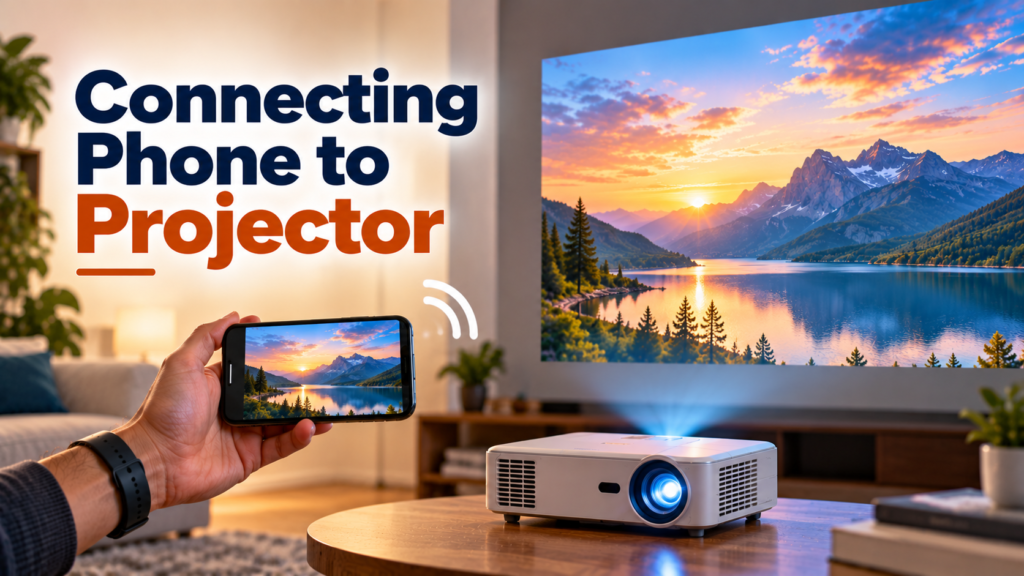
Want to watch videos, share photos, or present slides on a bigger screen? Learning how to connect phone to projector can help you enjoy content on a large display without struggling with complicated setup steps.
You can connect your smartphone to a compatible projector wirelessly using screen mirroring, Android Cast, or Apple AirPlay. The exact method depends on your phone and projector, so here’s how to get started on Android and iPhone.
1. How to Connect Your Phone to a Projector Wirelessly
Before you begin, check whether your projector supports wireless screen mirroring or casting. Some projectors have this feature built in, while others need a compatible streaming device.
Follow these steps to connect your phone to a projector wirelessly:
- Check compatibility: Make sure your projector supports a wireless connection method compatible with your phone, such as AirPlay or screen mirroring.
- Connect to Wi-Fi: If your projector’s mirroring method requires Wi-Fi, connect both devices to the same network.
- Open screen mirroring: On your phone, open the casting or screen-mirroring option.
- Select the projector: Choose your projector or compatible streaming device from the list.
- Confirm the connection: Follow any prompts on your phone or projector. Your phone’s screen should appear on the larger display.
Once connected, you can share photos, display presentations, or watch supported video content. Some streaming apps may restrict mirroring because of content protection, so playback can vary.
2. How to Connect an Android Phone to a Projector
If you want to know how to connect phone to projector using Android, start by checking your phone’s quick settings. Depending on the brand and software version, the feature may be called Cast, Screen Cast, Smart View, or Wireless Display.
Steps to Connect an Android Phone
- Turn on your projector and enable its wireless mirroring feature.
- Open Quick Settings on your Android phone by swiping down from the top of the screen.
- Tap Cast, Screen Cast, Smart View, or the equivalent option available on your phone.
- Select your compatible projector or streaming device.
- Follow the on-screen instructions to complete the connection.
If the projector does not appear, check that the required wireless feature is enabled and that both devices are connected to the appropriate network. Some Android phones and projectors use different casting technologies, so compatibility matters.
Tip: The easiest way to avoid setup problems is to check the projector’s instructions before starting. Not every Android phone supports every wireless display method.
3. How to Connect an iPhone to a Projector Wirelessly
To connect an iPhone to a projector wirelessly, you can use AirPlay if your projector or a connected streaming device supports it.
Steps to Connect an iPhone
You can mirror your iPhone’s display on a projector when the projector or a connected streaming device supports Apple AirPlay.
Steps to mirror your iPhone screen:
- Switch on the projector and open its AirPlay settings, if available.
- Connect your iPhone and the receiving device to the same Wi-Fi network if the setup requires it.
- Swipe down from the top-right corner of your iPhone to open Control Center.
- Select Screen Mirroring.
- Choose the compatible projector or streaming device shown on your screen.
- If a passcode appears on the projector, enter it on your iPhone.
Once the connection is established, your iPhone display should appear on the projected screen. If the device isn’t listed, verify AirPlay support and check the connection settings. You may need a compatible streaming device or a suitable wired adapter if your projector doesn’t support AirPlay.
4. What If Your Projector Does Not Support Wireless Connections?
Not all projectors have built-in wireless screen mirroring. If yours does not support it, you may still be able to connect your phone using an alternative method.
- Use a streaming device: A compatible device connected to the projector’s HDMI port may add wireless casting or AirPlay support.
- Use an HDMI adapter: Depending on your phone model and port, a compatible adapter may let you connect your phone directly to the projector.
- Check USB compatibility: A USB port does not automatically mean the projector can display your phone’s screen. Check the projector and phone specifications before trying this method.
If your goal is to connect a phone to a projector without HDMI cables, confirm wireless compatibility before buying a projector or accessories.
5. Frequently Asked Questions
How do I connect my phone to a projector without cables?
Use wireless screen mirroring or casting if your phone and projector support a compatible method. Follow the projector’s setup instructions and connect both devices to the required network.
Can I connect my phone to a projector using USB?
Sometimes, but it depends on your phone, the projector, and the supported connection method. A USB port alone does not guarantee screen mirroring. A compatible HDMI adapter may be needed instead.
Can I connect an iPhone to a projector using AirPlay?
That depends on the ports and video-output capabilities of your phone and projector. A USB connection does not always transmit your phone’s screen. Check the specifications for both devices to determine whether direct USB video is supported or whether you need a compatible adapter.
Do all projectors support wireless phone connections?
No. Some projectors support wireless mirroring, while others require a streaming device or a wired connection. Check the specifications before buying.
Why is my phone not connecting to the projector wirelessly?
If your phone cannot find the projector, first confirm that both devices support the same wireless display technology. Then check that the projector’s mirroring feature is enabled and that any required Wi-Fi connection is configured correctly. If the problem continues, restart both devices and try pairing them again.
6. Conclusion
Connecting a phone to a projector is easier when you know which connection methods your devices support. Android phones may offer options such as Cast or Smart View, while iPhones can use AirPlay with compatible equipment.
Before connecting, check your projector’s compatibility and follow the instructions for your device. If you’re planning to buy a projector, compare wireless-ready models on Livora to find one that suits your viewing and presentation needs.