How to Connect a Projector to a Laptop Without the Hassle
 Blogs
Blogs
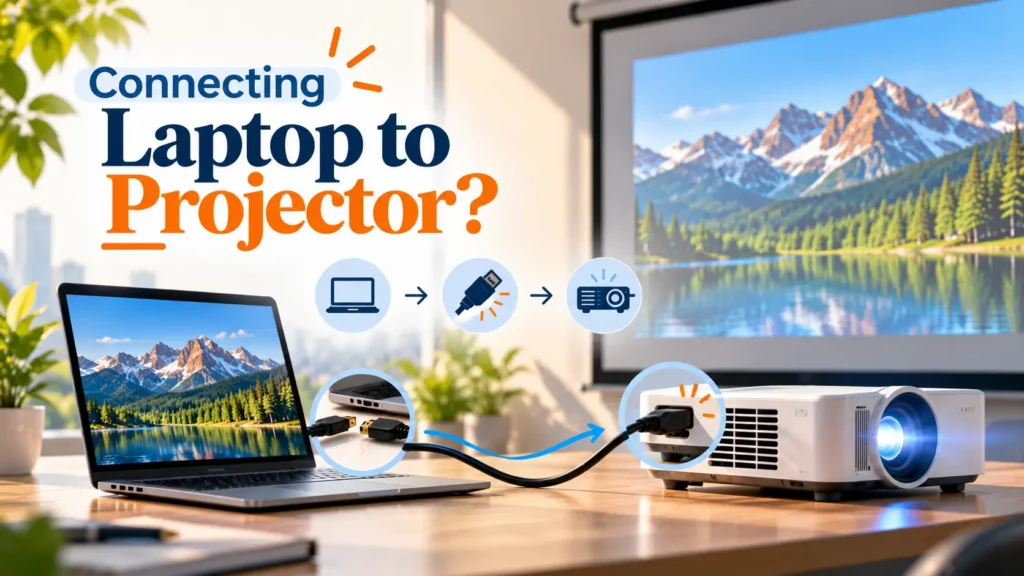
Connecting a projector to your laptop is easier than it sounds. Whether you are preparing for a presentation, watching a movie, or sharing your screen, the right projector connection can get you started in just a few steps. Learning how to connect projector to laptop can help you get everything working without unnecessary trouble.
Here is how to connect a projector to a laptop without any unnecessary trouble.
1. How to Connect Projector to Laptop
First, check the ports available on both your laptop and projector. The most common option is HDMI.
Follow these steps to connect them:
- Connect the HDMI cable: Connect one end of the HDMI cable to your laptop and the other end to the projector.
- Switch on both devices: Turn on your laptop and projector.
- Select the correct input: Choose the HDMI input on the projector that matches the port you are using.
- Check the connection: Your laptop may detect the display automatically. If nothing appears, check that both ends of the cable are firmly connected and that the projector is set to the correct input.
If you are wondering how to connect a laptop to a projector with HDMI, these steps will help you get started.
2. Adjust Your Display Settings
If the projector does not display your laptop screen, open your laptop’s display settings and select the option to duplicate or extend the screen.
On Windows laptops, you can also press Windows + P to quickly choose your preferred display mode.
Extend: Lets you use the projector as a second screen.
Duplicate: Shows the same content on your laptop and projector.
If the projector remains blank, check the selected display mode and confirm that the projector is powered on and set to the correct input. Display options and menu names may vary depending on your operating system.
For Mac users: Open System Settings and select Displays after connecting the projector. Depending on your macOS version, you can choose whether to mirror your laptop screen or use the projector as an extended display. If the projector does not appear, check the cable or adapter connection and consult Apple’s support instructions for your Mac model. Correct display settings are an important part of how to connect projector to laptop successfully.
3. What If Your Laptop Does Not Have HDMI
Some modern laptops do not include an HDMI port. In this case, you may need an adapter, such as USB-C to HDMI, depending on your laptop and projector model.
Here are the available connection options:
- USB-C to HDMI: Use a compatible adapter if your laptop’s USB-C port supports video output.
- VGA cable: If both devices have VGA ports, you can connect them using a VGA cable.
- Other adapters: If your laptop and projector use different ports, you may need a compatible adapter.
Before buying an adapter, check your laptop’s specifications. Not every USB-C port supports video output, so a USB-C-to-HDMI adapter will work only if your laptop supports a compatible display output. Also check that the adapter supports the resolution you want to use with your projector.
Check the supported connections on both devices before choosing a cable, as older connections and adapters may have different video and audio capabilities.
4. Troubleshooting Common Projector Connection Problems
If you have followed the steps for how to connect projector to laptop but nothing appears on the screen, check these common problems before replacing your cable or adapter.
- Projector shows “No Signal”: Confirm that the projector is set to the correct input. Check both cable connections and select the projector again from your laptop’s display settings.
- Laptop does not detect the projector: Disconnect and reconnect the cable, then check the available displays in your operating system. If you are using an adapter, confirm that it supports video output for your laptop.
- Image looks stretched or unclear: Open your display settings and select a resolution supported by both the laptop and projector.
- Picture keeps cutting out: Check for loose connections or visible cable damage. If possible, try another compatible cable and a different port to help identify whether the issue is related to the cable, connection or projector input.
If these checks do not resolve the issue, consult the laptop or projector manufacturer’s support documentation for model-specific instructions.
5. Frequently Asked Questions
Q: How do I connect my laptop to a projector using HDMI?
Connect one end of an HDMI cable to your laptop and the other to the projector, switch on both devices, and select the correct HDMI input on the projector.
Q: What if my laptop screen does not appear on the projector?
Open your laptop’s display settings and select duplicate or extend screen. On Windows, pressing Windows plus P lets you quickly switch display modes.
Q: What do I do if my laptop does not have an HDMI port?
You will likely need an adapter such as USB-C to HDMI, depending on your specific laptop and projector model.
Q: Can I connect a projector to a laptop without any cables?
Some laptops and projectors support wireless screen mirroring, but both devices must support compatible wireless display technology or work with a suitable receiver. The setup process varies by device, so check the manufacturer’s instructions before connecting. For presentations where reliability matters, a wired HDMI connection is often the simpler option.
Q: Does the type of HDMI cable matter for a projector connection?
A standard HDMI cable is sufficient for most laptop-to-projector connections, though longer cable runs may benefit from a higher-quality cable to avoid signal loss.
6. Conclusion
Knowing how to connect a projector to a laptop makes presentations and entertainment much simpler. With the right cable or adapter, your laptop projector setup can be ready in just a few minutes.