How to Connect a Soundbar to Your TV the Right Way: HDMI, Optical, and Bluetooth Explained
 Blogs
Blogs
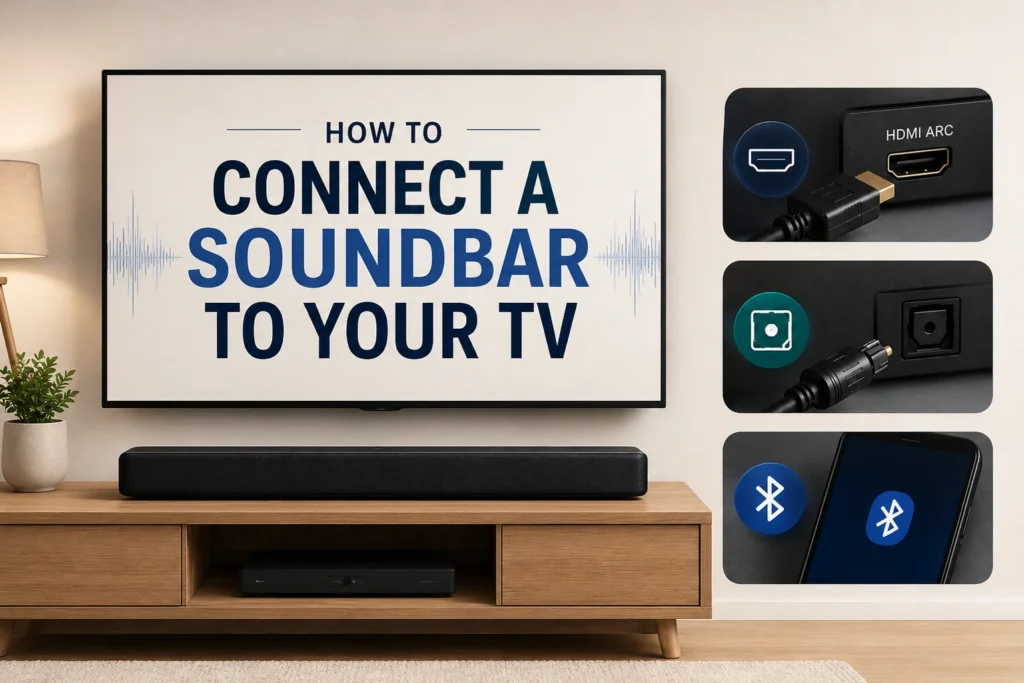
Modern smart TVs are incredibly thin and sleek, but that design comes with a major compromise: tiny, downward-firing built-in speakers. If you want to connect a soundbar to your TV, choosing the right connection can make a noticeable difference to audio quality. Whether you use HDMI ARC, optical, or Bluetooth, the right setup can help you get clearer, more immersive sound without unnecessary connection issues.
Upgrading your home entertainment setup with a soundbar is one of the easiest ways to bring cinema-quality audio into your living room. However, simply unboxing the device is not enough. Choosing the wrong wire or setting can noticeably degrade your audio quality.
This guide walks through how to handle your soundbar connection the right way using HDMI ARC, Optical, and Bluetooth, so you get the best possible sound from day one.
1. HDMI ARC / eARC: The Best Audio Quality
If you want the best possible audio performance from your soundbar connection, HDMI ARC is the gold standard.
What Is HDMI ARC?
ARC stands for Audio Return Channel. In a traditional setup, an HDMI cable only sends audio and video from a source device, such as a set-top box or gaming console, to the TV. HDMI ARC changes this by allowing your TV to send audio back down the same cable directly into your soundbar.
Why Choose It?
- High bandwidth: It has the capacity required to transmit uncompressed audio formats like Dolby Atmos, DTS:X, and Dolby Digital Plus
- Single remote control (CEC): HDMI ARC uses a feature called Consumer Electronics Control, which lets your TV remote automatically turn the soundbar on and off and control its volume, cutting down on remote clutter
How to Connect a Soundbar to a TV via HDMI ARC
- Locate the specific HDMI port on the back of your TV labelled HDMI ARC or eARC. Not all HDMI ports support this feature
- Connect one end of a high-speed HDMI cable to this TV port and the other end to the HDMI OUT (ARC) port on your soundbar
- Open your TV’s audio settings menu and switch the sound output from Internal Speakers to Receiver or HDMI ARC
- Change the digital audio output format from PCM to Auto or Bitstream, so the soundbar can decode multi-channel surround sound
2. Digital Optical Audio Cable: The Reliable Backup
If your TV or soundbar is a little older and lacks an HDMI ARC port, a Digital Optical cable, also known as TOSLINK, is your next best option.
How It Works
Optical cables use fiber-optic strands and pulses of laser light to transmit digital audio data between devices. Because it uses light instead of copper wiring, it is largely immune to electrical hums, radio interference, and grounding noise.
The Trade-Off
While highly reliable, optical cables have physical bandwidth limitations compared to HDMI. They handle standard 5.1 Dolby Digital and DTS surround sound comfortably, but they cannot transmit high-definition, object-based audio formats like Dolby Atmos or uncompressed 7.1 audio tracks.
How to Connect via Optical Cable
- Remove the protective rubber caps from both ends of the thin optical cable
- Insert one end into the Optical Out port on your TV and the other into the Optical In port on your soundbar until you hear a firm click
- Go to your TV settings, set your audio output to Optical, and ensure your digital audio format is set to Bitstream for multi-channel processing
3. Bluetooth Connection: The Cleanest Wireless Setup
If you would rather avoid dangling wires altogether and want a clutter-free soundbar setup, wireless Bluetooth pairing is an appealing choice.
The Pros and Cons
Wireless setups make wall-mounting your soundbar much easier, since you do not have to route cables through the wall. That said, Bluetooth comes with a few trade-offs worth knowing about:
- Audio lag: Because wireless data takes time to compress, transmit, and decompress, you may notice lip-sync issues where the actors’ mouth movements do not line up perfectly with the audio
- Compressed quality: Bluetooth compresses audio data, which means you lose some of the subtle detail, crisp highs, and deep bass performance found in wired setups
How to Pair via Bluetooth
- Turn on your soundbar and switch its source input to Bluetooth (BT) mode using its remote
- Open your smart TV’s settings menu, go to Accessories and Bluetooth Devices, and choose Add Device or Search for Audio Devices
- Select your soundbar model from the on-screen list to complete the wireless connection
For the ultimate cinematic experience, prioritize a physical HDMI ARC connection whenever it is available. It delivers the full, uncompressed acoustic power your soundbar was engineered to produce.
4. Which Connection Is Best to Connect Soundbar to TV?
Here is a quick side-by-side comparison to help you decide which soundbar connection fits your setup best
| Connection Type | Audio Quality | Remote Convenience | Best Used For |
| HDMI ARC / eARC | Premium (supports Dolby Atmos) | Yes, one remote controls both | Modern 4K smart TVs and high-end soundbars |
| Digital Optical | Good (supports 5.1 surround) | No, requires separate remotes | Older TVs or secondary setups |
| Bluetooth | Basic stereo | Depends on TV model | Clean, wireless bedroom installations |
5. Frequently Asked Questions
Q: What is the best way to connect a soundbar to a TV?
HDMI ARC or eARC is the best way to connect a soundbar to a TV whenever both devices support it. It carries high-bandwidth, uncompressed audio and lets you control the soundbar with your TV remote.
Q: Can I connect a soundbar to my TV without HDMI ARC?
Yes. If your TV does not have an HDMI ARC port, a digital optical cable is a reliable alternative that supports standard 5.1 surround sound, or you can pair the soundbar over Bluetooth for a fully wireless connection.
Q: Does Bluetooth soundbar connection affect audio quality?
Yes, to some extent. Bluetooth compresses audio data, so you lose some detail compared to a wired HDMI ARC or optical connection, and there can be minor lip-sync lag during fast-moving scenes.
Q: Why does my soundbar not support Dolby Atmos over optical cable?
Optical cables have a lower bandwidth ceiling than HDMI, so they can carry standard 5.1 surround sound but cannot transmit object-based formats like Dolby Atmos, which require the extra bandwidth that HDMI ARC provides.
Q: How do I fix audio not playing through my soundbar after connecting it?
Check that your TV’s audio output setting is switched from Internal Speakers to Receiver, HDMI ARC, or Optical, depending on your connection type, and confirm the digital audio format is set to Auto or Bitstream rather than PCM.
6. Conclusion
Choosing the right soundbar connection makes a real difference to how your home entertainment setup actually sounds. HDMI ARC remains the gold standard for modern 4K TVs, digital optical is a dependable backup for older setups, and Bluetooth offers a clean, wireless option when convenience matters more than absolute audio fidelity. Whichever option fits your setup, getting the connection and settings right is what unlocks the full cinema-quality experience your soundbar was built to deliver.